
Document Management System with ASP.NET Core and Azure Blob Storage: Complete Implementation Guide
Introduction
A Document Management System (DMS) is a critical component in modern business applications, enabling secure storage, retrieval, and management of digital documents. This comprehensive guide demonstrates how to build a production-ready DMS using ASP.NET Core Web API integrated with Azure Blob Storage.
🎯 What We Are Building
A Document Management System that:
- Supports uploads: PDF, JPG, PNG, MP4
- Stores files in Azure Blob Storage
- Persists document metadata in a database
Users can:
- Upload documents
- Download or view documents
- List documents by customer
- Delete documents (if allowed)
Let’s develop the application step-by-step using azure blob storage for file handling and ASP.NET Core for the API.
🛠️ Technologies Used
- ASP.NET Core Web API
- Azure Blob Storage
- Entity Framework Core
- SQL Server (or any relational database)
- C#
- Swagger for API documentation
Step 1: Create Azure Blob Storage First, create an Azure Blob Storage account to store the documents. You can do this via the Azure Portal or using the Azure CLI.
- In Azure Portal:
- Create Storage Account
- Performance: Standard
- Redundancy: LRS
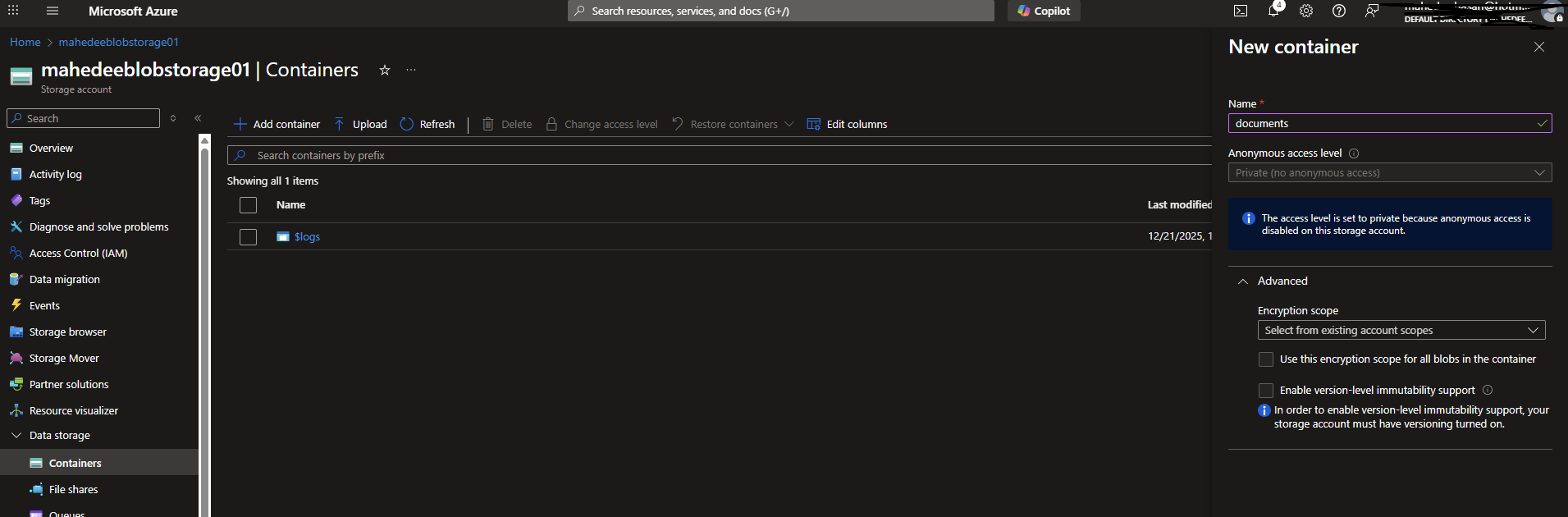
- Create Blob Container
- Container name: documents
- Access level: Private
- Get Connection String
Storage Account → Access keys → Connection string
or use Azure CLI:
az storage account show-connection-string --name <your-storage-account-name> --resource-group <your-resource-group>
Example
az storage account show-connection-string --name mahedeeblobstorage01 --resource-group BlobStorageRGh
Output:
{
 "connectionString": "DefaultEndpointsProtocol=https;EndpointSuffix=core.windows.net;AccountName=mahedeeblobstorage01;AccountKey=APCKnzRKEeF4+SaUabbXRSiM0ujmaG/lRY/L/KlggL3/FYCy/zzEZY7lZkFsFkrMDmFiUjzZCXRdlZE+ASt3OhCzg==;BlobEndpoint=https://mahedeeblobstorage01.blob.core.windows.net/;FileEndpoint=https://mahedeeblobstorage01.file.core.windows.net/;QueueEndpoint=https://mahedeeblobstorage01.queue.core.windows.net/;TableEndpoint=https://mahedeeblobstorage01.table.core.windows.net/"
}
Troubleshooting Tips:
- If Azure CLI fails to create the storage account, check local firewall/proxy settings. Temporarily disabling the firewall allowed the command to succeed and the connection string to be retrieved. Prefer whitelisting Azure endpoints or adjusting proxy rules rather than fully disabling the firewall.
Step 2: Create Database (Metadata)
- Create a new database in your local server name - DocumentDB
- Create a table to store document metadata
USE DocumentDB;
GO

CREATE TABLE DOCUMENTS (
    ID UNIQUEIDENTIFIER PRIMARY KEY DEFAULT NEWID(),
    FILE_NAME NVARCHAR(255) NOT NULL,           -- Blob file name in Azure
    ORIGINAL_FILE_NAME NVARCHAR(255) NOT NULL,  -- Original uploaded file name
    CUSTOMER_ID NVARCHAR(50),
    UPLOADED_BY NVARCHAR(100),
    UPLOAD_DATE DATETIME DEFAULT GETDATE(),
    CONTENT_TYPE NVARCHAR(50)
);
GO
Step 3: Create ASP.NET Core Web API Project
- Open Visual Studio and create a new ASP.NET Core Web API project named DMS.Api
- Install necessary NuGet packages:
dotnet add package Azure.Storage.Blobs
dotnet add package Microsoft.EntityFrameworkCore
dotnet add package Microsoft.EntityFrameworkCore.SqlServer
dotnet add package Microsoft.EntityFrameworkCore.Tools
dotnet add package Swashbuckle.AspNetCore
dotnet add Microsoft.AspNetCore.OpenApi
Step 4: Configure appsettings.json
{
   "AzureBlob": {
    "connectionString": "DefaultEndpointsProtocol=https;EndpointSuffix=core.windows.net;AccountName=mahedeeblobstorage01;AccountKey=APCKnzRKEeF4+SaUabbXRSiM0ujmaG/lRY/L/KlggL3/FYCy/zzEZY7lZkFsFkrMDmFiUjzZCXRdlZE+ASt3OhCzg==;BlobEndpoint=https://mahedeeblobstorage01.blob.core.windows.net/;FileEndpoint=https://mahedeeblobstorage01.file.core.windows.net/;QueueEndpoint=https://mahedeeblobstorage01.queue.core.windows.net/;TableEndpoint=https://mahedeeblobstorage01.table.core.windows.net/",
    "ContainerName": "documents"
  },
  "ConnectionStrings": {
    "DefaultConnection": "Server=.;Database=DocumentDB; User Id = sa; Password = mypassword; TrustServerCertificate=True;"
  },

  "Logging": {
    "LogLevel": {
      "Default": "Information",
      "Microsoft.AspNetCore": "Warning"
    }
  },
  "AllowedHosts": "*"
}
Step 5: Implement the Document Entity
Create Document.cs in Models folder
namespace DMS.Api.Models
{
    public class Document
    {
        public Guid Id { get; set; }
        public required string FileName { get; set; }          // stored in blob
        public required string OriginalFileName { get; set; }  // user file name
        public required string CustomerId { get; set; }
        public required string UploadedBy { get; set; }
        public DateTime UploadDate { get; set; }
        public required string ContentType { get; set; }
    }
}
Step 6: Implement the DbContext Create DmsDbContext.cs in Data folder
using DMS.Api.Models;
using Microsoft.EntityFrameworkCore;

namespace DMS.Api.Data
{
    public class ApplicationDbContext : DbContext
    {
        public ApplicationDbContext(DbContextOptions<ApplicationDbContext> options) : base(options)
        {
        }

        public DbSet<Document> Documents { get; set; }

        protected override void OnModelCreating(ModelBuilder modelBuilder)
        {
            base.OnModelCreating(modelBuilder);

            // Configure Document entity
            modelBuilder.Entity<Document>(entity =>
            {
                entity.HasKey(e => e.Id);
                entity.Property(e => e.FileName).IsRequired().HasMaxLength(255);
                entity.Property(e => e.OriginalFileName).IsRequired().HasMaxLength(255);
                entity.Property(e => e.CustomerId).IsRequired().HasMaxLength(100);
                entity.Property(e => e.UploadedBy).IsRequired().HasMaxLength(100);
                entity.Property(e => e.ContentType).IsRequired().HasMaxLength(100);
                entity.Property(e => e.UploadDate).IsRequired();
            });
        }
    }
}
Step 7: Implement Azure Blob Storage Service
Create BlobService.cs in Services folder
using Azure.Storage.Blobs;

namespace DMS.Api.Services
{
    public class BlobStorageService
    {
        private readonly BlobContainerClient _container;

        public BlobStorageService(IConfiguration config)
        {
            _container = new BlobContainerClient(
                config["AzureBlob:ConnectionString"],
                config["AzureBlob:ContainerName"]);

            _container.CreateIfNotExists();
        }

        public async Task UploadAsync(string fileName, Stream stream)
        {
            var blob = _container.GetBlobClient(fileName);
            await blob.UploadAsync(stream, overwrite: true);
        }

        public async Task<Stream> DownloadAsync(string fileName)
        {
            var blob = _container.GetBlobClient(fileName);
            var result = await blob.DownloadAsync();
            return result.Value.Content;
        }

        public async Task DeleteAsync(string fileName)
        {
            var blob = _container.GetBlobClient(fileName);
            await blob.DeleteIfExistsAsync();
        }
    }
}
Step 8: Implement Document Controller
Create DocumentController.cs in Controllers folder
using DMS.Api.Data;
using DMS.Api.Models;
using DMS.Api.Services;
using Microsoft.AspNetCore.Mvc;
using Microsoft.EntityFrameworkCore;

namespace DMS.Api.Controllers
{
    [ApiController]
    [Route("api/[controller]")]
    public class DocumentsController : ControllerBase
    {
        private readonly BlobStorageService _blobService;
        private readonly ApplicationDbContext _db;

        public DocumentsController(BlobStorageService blobService, ApplicationDbContext db)
        {
            _blobService = blobService;
            _db = db;
        }

        [HttpPost("upload")]
        public async Task<IActionResult> Upload(
            IFormFile file,
            string customerId,0
            string uploadedBy)
        {
            var uniqueFileName = $"{Guid.NewGuid()}{Path.GetExtension(file.FileName)}";

            await _blobService.UploadAsync(uniqueFileName, file.OpenReadStream());

            var document = new Document
            {
                Id = Guid.NewGuid(),
                FileName = uniqueFileName,
                OriginalFileName = file.FileName,
                CustomerId = customerId,
                UploadedBy = uploadedBy,
                UploadDate = DateTime.UtcNow,
                ContentType = file.ContentType
            };

            _db.Documents.Add(document);
            await _db.SaveChangesAsync();

            return Ok(document);
        }

        [HttpGet("{id}")]
        public async Task<IActionResult> Download(Guid id)
        {
            var doc = await _db.Documents.FindAsync(id);
            if (doc == null) return NotFound();

            var stream = await _blobService.DownloadAsync(doc.FileName);
            return File(stream, doc.ContentType, doc.OriginalFileName);
        }

        [HttpGet("customer/{customerId}")]
        public async Task<IActionResult> GetByCustomer(string customerId)
        {
            var docs = await _db.Documents
                .Where(d => d.CustomerId == customerId)
                .ToListAsync();

            return Ok(docs);
        }

        [HttpGet]
        public async Task<IActionResult> GetAllDocuments()
        {
            var docs = await _db.Documents
                .Select(d => new
                {
                    d.Id,
                    d.FileName,
                    d.OriginalFileName,
                    d.CustomerId
                })
                .ToListAsync();

            return Ok(docs);
        }

        [HttpDelete("{id}")]
        public async Task<IActionResult> Delete(Guid id)
        {
            var doc = await _db.Documents.FindAsync(id);
            if (doc == null) return NotFound();

            await _blobService.DeleteAsync(doc.FileName);

            _db.Documents.Remove(doc);
            await _db.SaveChangesAsync();

            return Ok("Deleted");
        }
    }
}
Step 9: Configure Services in Program.cs
using DMS.Api.Data;
using DMS.Api.Services;
using Microsoft.EntityFrameworkCore;

var builder = WebApplication.CreateBuilder(args);

// Add Entity Framework
builder.Services.AddDbContext<ApplicationDbContext>(options =>
    options.UseSqlServer(builder.Configuration.GetConnectionString("DefaultConnection")));

// Add Azure Blob Storage Service
builder.Services.AddScoped<BlobStorageService>();

// Add controllers
builder.Services.AddControllers();

// Add services to the container.
// Learn more about configuring Swagger/OpenAPI at https://aka.ms/aspnetcore/swashbuckle
builder.Services.AddEndpointsApiExplorer();
builder.Services.AddSwaggerGen();

var app = builder.Build();

// Configure the HTTP request pipeline.
if (app.Environment.IsDevelopment())
{
    app.UseSwagger();
    app.UseSwaggerUI();
}

app.UseHttpsRedirection();

// Map controllers
app.MapControllers();

app.Run();
Step 10: Run and Test the API
- Run the application and browse to Swagger UI at
http://localhost:5284/swagger/index.html - Test the endpoints:
- Upload documents
- Download/view documents
- List documents by customer
- Delete documents
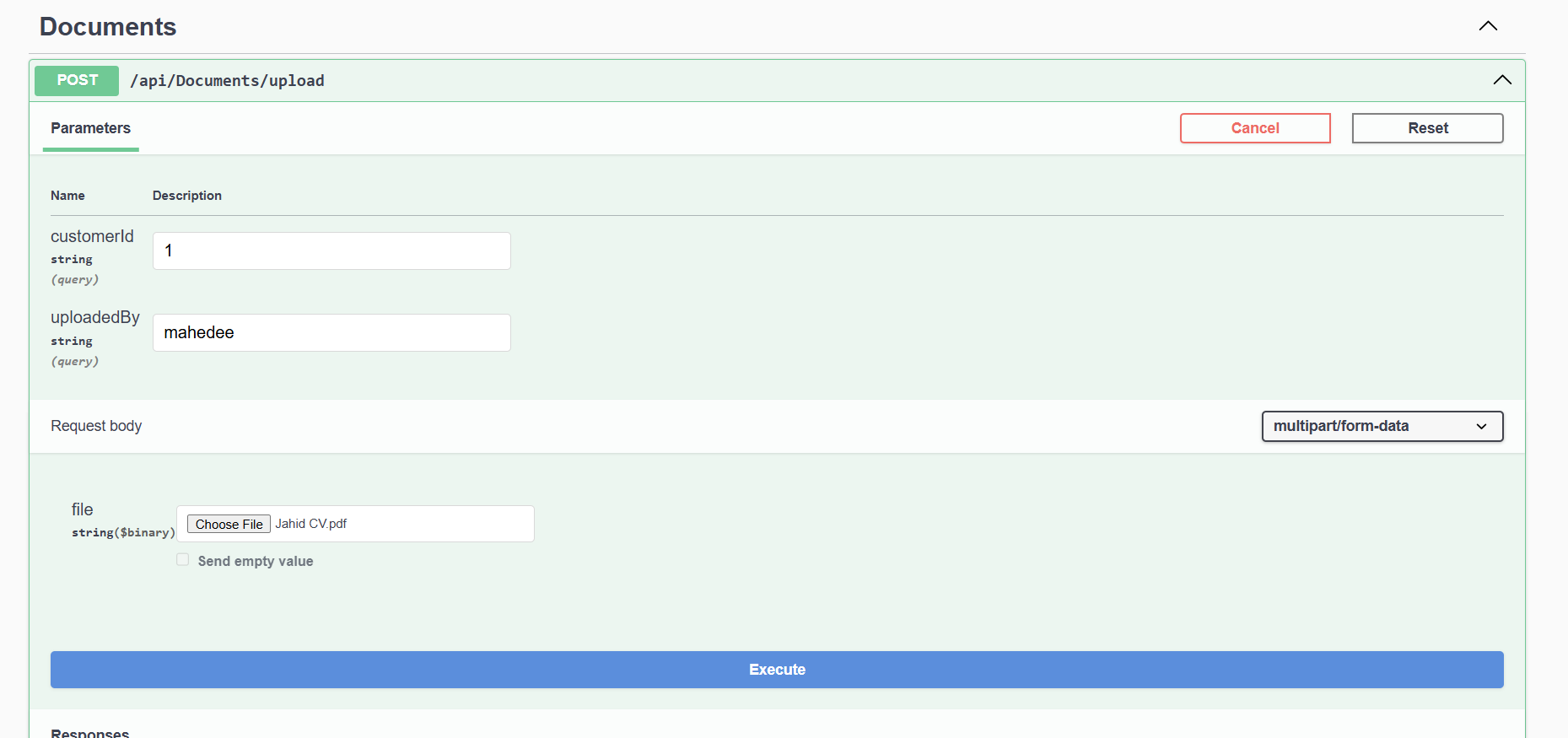
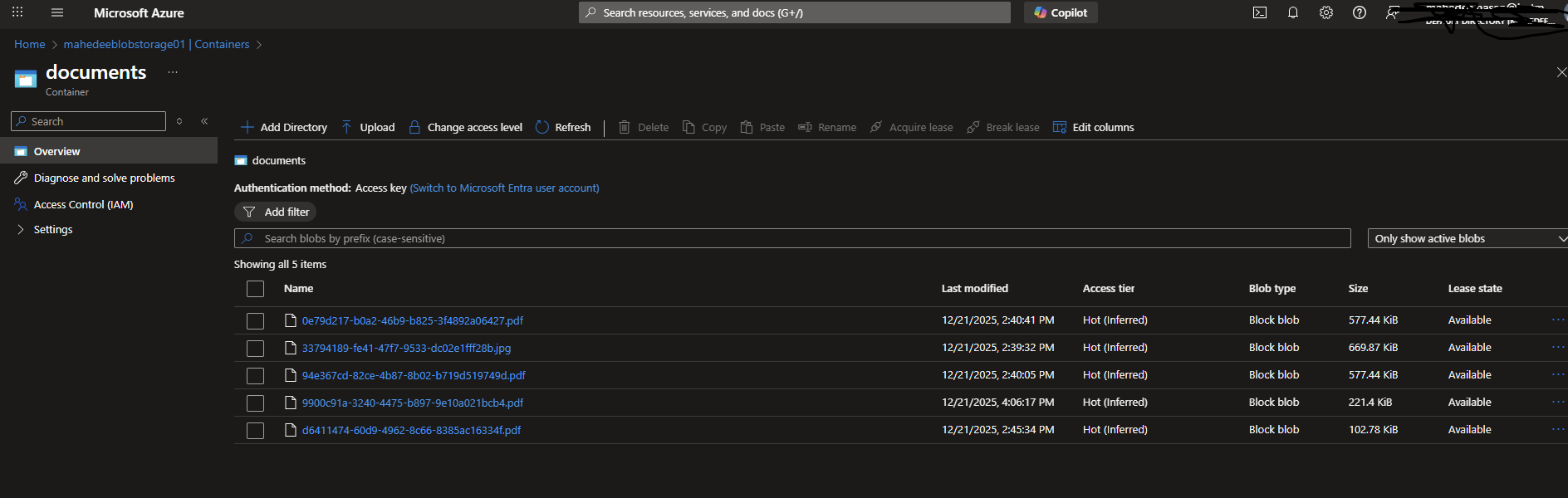
If you see in azure portal the uploaded files in blob container and metadata in database table, congratulations! You have successfully built a Document Management System using ASP.NET Core Web API and Azure Blob Storage.

Comments